
Using AGK on Raspberry Pi
The Raspberry Pi is a versatile and very capable small factor computer, running versions of Linux, capable of playing retro games, used in large data farming and complex computing farms for a relatively cheap cost. They start from about £5 (https://thepihut.com/collections/raspberry-pi-boards?sort_by=price-ascending) which is crazy given the computing power available. I use them for tracking aircraft, home automation, arcade machines and even development of software. Many organisations replaced expensive enterprise hardware by clustering many of these cheaper devices. Power wise I’ve measure mine running around 4 Watts, Though I digress…

Recently I was looking at whether I could deliver some of my AGK Projects to ARMv7 devices. I’m aware some Androids use this processor, but being an Apple man… That wasn’t possible.
That said… The Game Creators https://www.thegamecreators.com released a version of App Game Kit https://www.appgamekit.com for Raspberry Pi which some models use … ARMv7 Processor.
If you don’t know, App Game Kit is an easy to learn 2D/3D sprite engine enabling you to code in a BASIC like syntax, or for hardened developers C++, Python etc using Tier2 Binaries. The benefit of coding in Tier 1 BASIC is the ability to write code once and deploy to multiple devices…. Windows, macOS, iOS, Android, Linux etc. featuring over 1900 commands as I write today.
If you have a Raspberry Pi and want to learn to code, this is an excellent way to start, AGK has plenty of examples and usage of commands, awesome support network, easy to get started books and more which you can find on the Steam Store :-
Classic: https://store.steampowered.com/news/app/325180/view/6391201883531834188
Studio: https://store.steampowered.com/news/app/1024640/view/3283711072066482606
If you want to try it on your Raspberry Pi, then you’re in luck! because The Game Creators give you AGK for your personal use on a Raspberry Pi, Free just for creating an account with them! So what are you waiting for? Sign up today!
Step 1: Download the Software

You could unzip the package directly onto the SD Card containing Pi OS. However, This article will discuss installation on your existing Raspberry Pi Build.
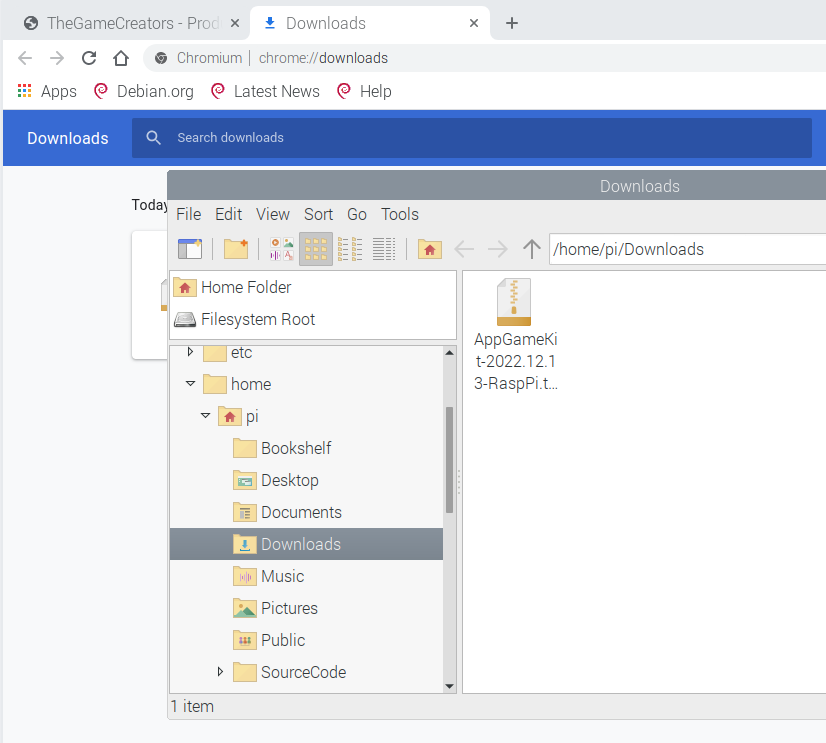
Log in to your Game Creators Account and download the AppGameKit Package for Raspberry Pi, you’ll find a .tar.gz file in the downloads folder like below.
Step 2: Unzip the Package
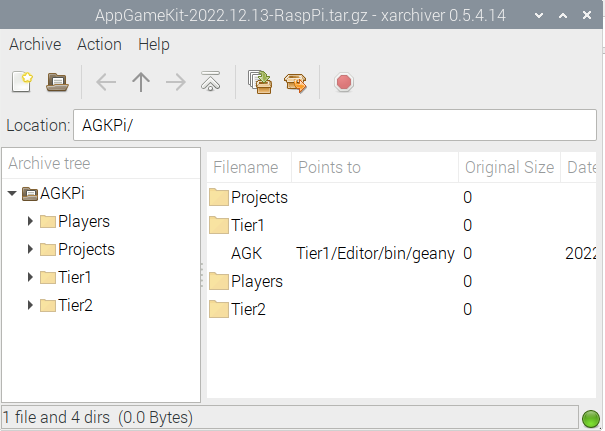
Double click the downloaded packaged, and xarchiver or default application will show you the contents of the package. Click the Extract To Icon, or Press CTRL+E or via the Menu Action->Extract
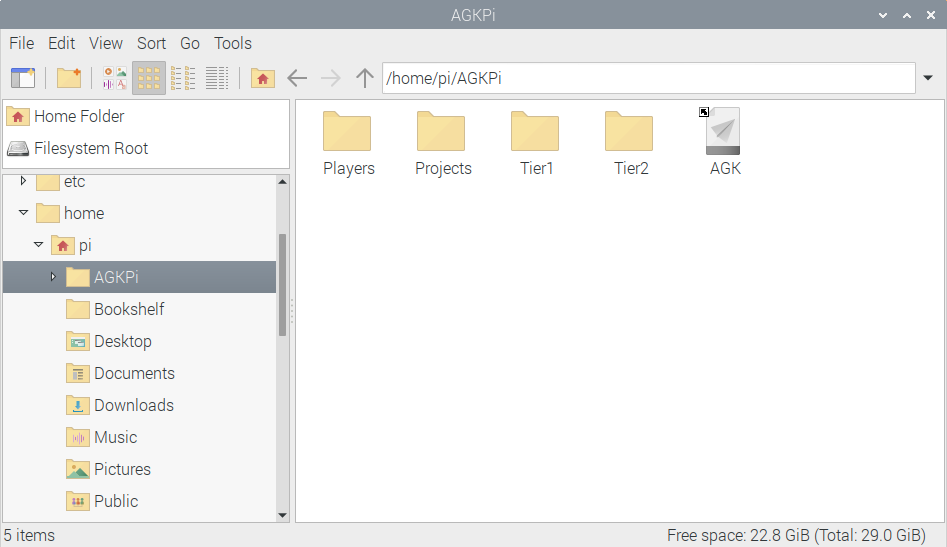
For now I suggest using the default location, i.e. /home/pi, click extract and a new folder will be created with AGPPi.

Step 3: Starting up AGK
When starting AGK for the first time you’ll be presented some options. Double Click AGK as shown in the AGKPi Folder.
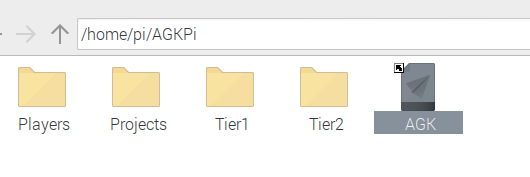
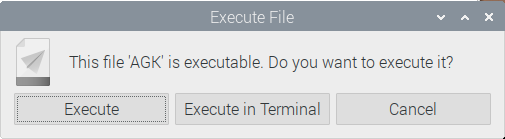
You’re presented with a choice to start or start using a terminal window. Either is fine… A Terminal Window will show you any internal messages from the AGK Compiler and Interpreter, which is useful when things aren’t going the way you expect.
Step 4: Configure the Default Folder Locations
On first startup, you’re presented with a dialog asking where to install additional files. For now, I recommend using the locations shown below and click INSTALL.
AGK Projects
/home/pi/SourceCode/AGK

C++ Libraries
/home/pi/SourceCode/cpp
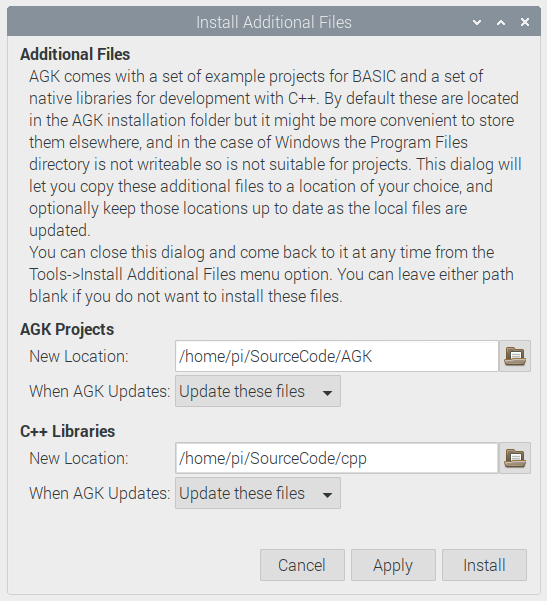
Installation may take a short while to complete while Sample AGK Tier 1 Projects are copied across. These projects showcase many of the commands for 2D and 3D. If you’re an advanced developer, C++ libraries and code for linking to your projects are made available.
Step 5: Try a sample project
Let’s open a sample project and run it… Click OPEN and Navigate to the SourceCode Folder located in pi/SourceCode/AGK/Sprites

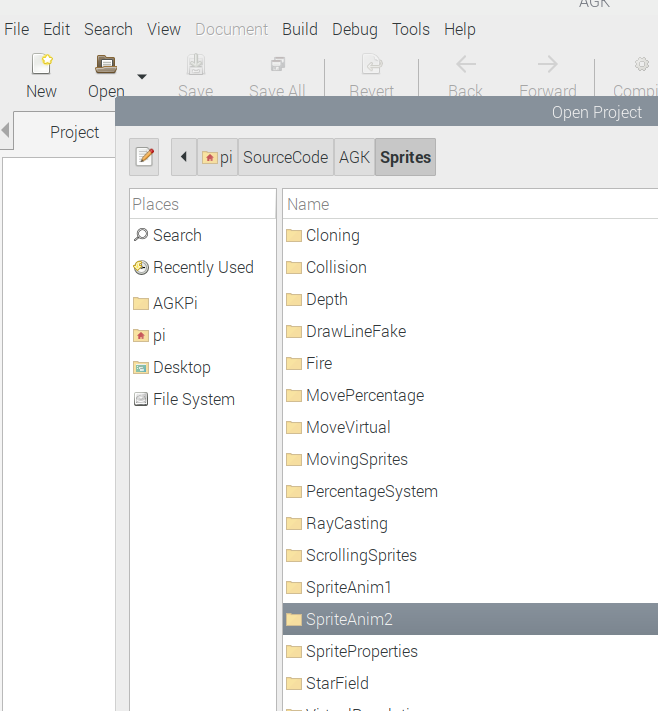
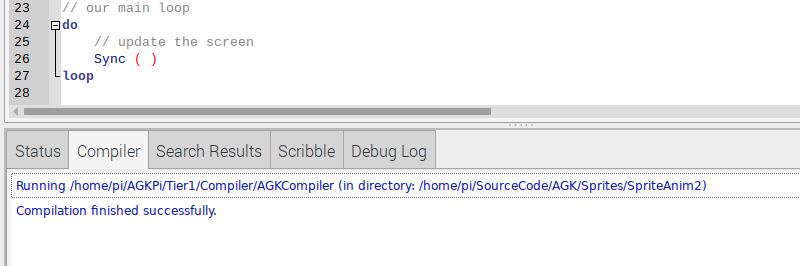
We’re going to start BASIC and choose SpriteAnim2, double click the SpriteAnim2.agk project to load into the editor. Double Click main.agc in the editor to load the file and you’ll see something similar shown below.

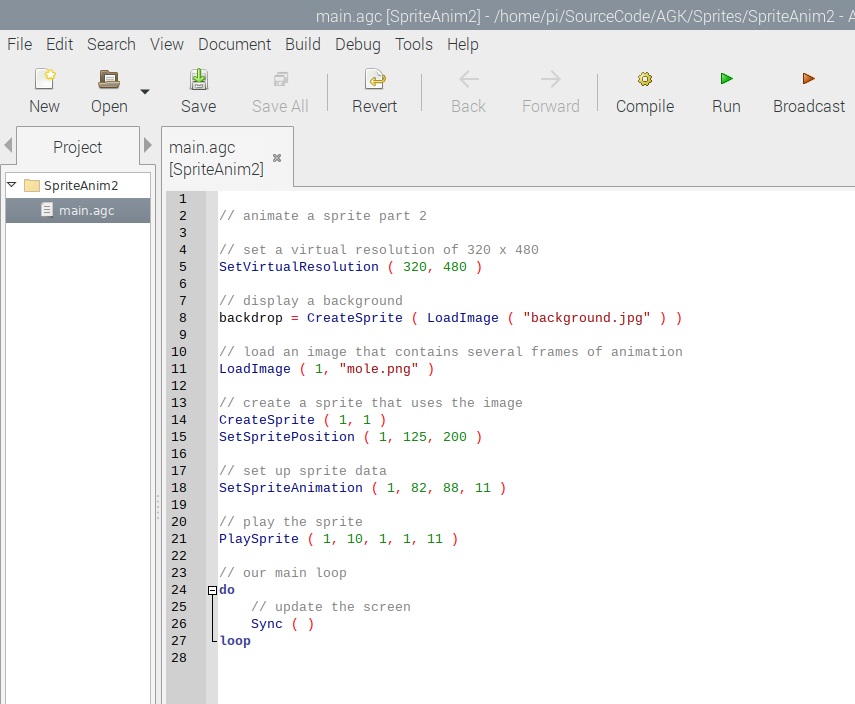
You can click Compile or Run, but…. Nothing seems to happen, except the message that compilation finished successfully.
Step 6: Compiling a new PiPlayer
It seems, at the time of writing the PiPlayer shipped with the RaspberryPi edition doesn’t work correctly on RaspberryPi 4, unless various libraries are installed. We’re going to get our hands dirty and compile up a new PiPlayer. Thankfully The Game Creators have released the source code on GitHub for their player, which can be found here: – https://github.com/TheGameCreators/AGKTier2
After some head scratching, and many thanks to the author “tboy” on TGC Forum, a sticky was created detailing instructions on building your own PiPlayer compatible with RaspberryPi 4. You can find their original article here: https://forum.thegamecreators.com/thread/227388
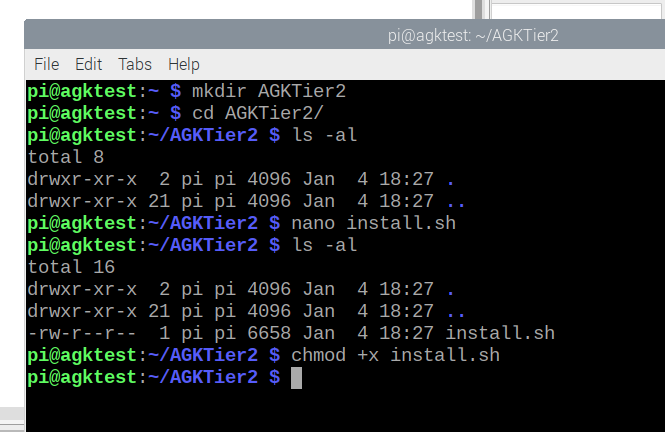
Although the instructions are for RPiOS Buster release, they also work on the current Bullseye OS. For convenience I’ve cut and pasted the version of tboy‘s script I used. I copied this into a new folder /home/pi/AGKTier2/install.sh and the script is provided below, though check back the TGC Forum for any updates or modifications.
mkdir /home/pi/AGKTier2

...
Copy the script to a file called install.sh
either download, or use

nano install.sh

and cut and paste the script.
...

cd /home/pi/AGKTier2
chmod +x install.sh
./install.sh
#!/bin/bash

#=============================================
# Download AGKTier2 to create a PiPlayer for
# the Raspberry PI 4.
#=============================================
# Created by tboy
#=============================================
# By using this script you agree that if your
# Raspberry Pi goes *bang* it's your fault.
# ============================================
# Enjoy!
#=============================================

# Exit if a command fails
set -e

clear

echo "============================================"
echo -e "         \033[0;91mAppGameKit Pi 4 Edition\033[0m"
echo "============================================"
echo " This script attempts to help automate the  "
echo " process of installing and downloading all  "
echo " the packages and libraries required to get "
echo " AppGameKit running on your Pi 4.           "
echo "============================================"
echo ""
echo "Before we begin..."
echo ""
echo "I would like to perform a couple of checks"
echo "to make sure you have the required system"
echo "to continue..."
printf "\nDo you want to continue? [y/n]: "

while read user_response;
do
  if [[ ("${user_response^^}" =~ ^[N]$) ]]; then
    echo "See ya!"
    exit
  elif [[ ("${user_response^^}" =~ ^[Y]$) ]]; then
    printf "\nGreat! You have chosen to continue\n\n"
    break
  fi
done

OS_VERSION="cat /etc/os-release"
OS_OUTPUT=$($OS_VERSION)

PI_VERSION="cat /proc/cpuinfo"
PI_OUTPUT=$($PI_VERSION)

if [[ ("${PI_OUTPUT^^}" != *"RASPBERRY PI 4"*) ]]; then
  echo -e "================================================"
  echo -e "Sorry, You need a \033[0;91mRaspberry Pi 4\033[0m to continue... "
  echo -e "================================================"
  exit
else
  echo -e "============================================================="
  echo -e "Yippee! You have a \033[0;91mRaspberry Pi 4\033[0m, operation will continue..."
  echo -e "============================================================="
  echo ""
fi

if [[ ("${OS_OUTPUT^^}" != *"RASPBIAN"*) && ("${OS_OUTPUT^^}" != *"BUSTER"*) ]]; then
  echo -e "============================================================="
  echo -e "It appears that you're not running Raspbian (Buster)"
  echo -e "I have only tested this on a \033[0;91mPi 4\033[0m with Raspbian (Buster)"
  echo -e "============================================================="
  printf "\nDo you want to continue? [y/n] "

  while read user_response;
  do
    if [[ ("${user_response^^}" =~ ^[N]$) ]]; then
      echo "See ya!"
      exit
    elif [[ ("${user_response^^}" =~ ^[Y]$) ]]; then
      printf "\nGreat! You have chosen to continue"
      break
    fi
  done

  echo -e "============================================================="
else
  printf "Awesome! It appears that you have the required system to continue... Let's go!\n\n"
  sleep 3s
fi

CMD_GIT="git clone"
HOST_SOURCE="https://github.com"
HOST_GLFW="/glfw/glfw"
HOST_AGKTIER2="/TheGameCreators/AGKTier2"

# You should have some of the following installed already, but will check anyway.
COMMANDS=("git" "build-essential" "cmake" "libopenal-dev" "libcurl4-openssl-dev"
          "libpng-dev" "libjpeg-dev" "xorg-dev" "libglu1-mesa-dev" "libudev-dev")

printf "Checking for required programs...\n\n"

for FILES in ${COMMANDS[@]}
do
  if ! dpkg -s $FILES &> /dev/null; then
    echo ""
    echo -e "$FILES => \033[0;91mnot found\033[0m"
    echo ""
    echo "Installing $FILES now..."
    echo ""
    sudo apt-get --yes install $FILES
  else
    echo -e "$FILES => \033[0;92mfound\033[0m"
  fi
done

HOST_AGKTIER2_SUBSTR=$(echo $HOST_AGKTIER2 | cut -d'/' -f 3)
if [ -d $HOST_AGKTIER2_SUBSTR ]; then
  echo ""
  echo $HOST_AGKTIER2_SUBSTR "folder already exists"
else
  echo "======================================"
  echo " Downloading AGKTier2 from repository "
  echo "======================================"
  $CMD_GIT $HOST_SOURCE$HOST_AGKTIER2

  echo ""
  echo "========================================="
  echo " When you run the LinuxPlayer, you may   "
  echo " experience a green overlay when running "
  echo " 3D examples due to a shader issue.      "
  echo "========================================="
  echo ""
  echo "==================================="
  echo "         AGKShader.cpp fix         "
  echo "==================================="
  echo " If you're certain the issue still "
  echo " exists and you will NOT overwrite "
  echo " any update, please continue...    "
  echo "==================================="
  printf "\nDo you want to apply the fix? [y/n]: "

  while read user_response;
  do
    if [[ ("${user_response^^}" =~ ^[N]$) ]]; then
      echo ""
      echo "=================================="
      echo " You can apply the fix later by   "
      echo " running agkshader-fix.sh         "
      echo "=================================="
      echo ""
      break
    elif [[ ("${user_response^^}" =~ ^[Y]$) ]]; then
      echo ""
      echo "Before fix: "
      sed '1841q;d' $HOST_AGKTIER2_SUBSTR/common/Source/AGKShader.cpp
      echo ""
      sed -i '1841s/colorVarying = color/colorVarying = vec4(1.0, 1.0, 1.0, 1.0)/' $HOST_AGKTIER2_SUBSTR/common/Source/AGKShader.cpp
      echo "After fix: "
      sed '1841q;d' $HOST_AGKTIER2_SUBSTR/common/Source/AGKShader.cpp
      echo ""
      break
    fi
  done
fi

HOST_GLFW_SUBSTR=$(echo $HOST_GLFW | cut -d'/' -f 3)
if [ -d $HOST_GLFW_SUBSTR ]; then
  echo $HOST_GLFW_SUBSTR "folder already exists"
else
  echo "=================================="
  echo " Downloading GLFW from repository "
  echo "=================================="
  $CMD_GIT $HOST_SOURCE$HOST_GLFW
fi

# We need to build GLFW first
cd $HOST_GLFW_SUBSTR
mkdir -p $HOST_GLFW_SUBSTR"-build"
cd $HOST_GLFW_SUBSTR"-build"
# Let's turn them all off to save some space
cmake .. -DGLFW_BUILD_DOCS=OFF -DGLFW_BUILD_EXAMPLES=OFF -DGLFW_BUILD_TESTS=OFF
# if you want a quicker build use: sudo make -j4 install
sudo make install

cd ..
cd ..

# Let's build AGKTier2
cd $HOST_AGKTIER2_SUBSTR
make
cd apps/interpreter_linux
make

cd build

ARCH=$(getconf LONG_BIT)
AGK_PLAYER="LinuxPlayer"$ARCH

if ls $AGK_PLAYER 1> /dev/null 2>&1; then
  echo ""
  echo "================================="
  echo "        Congratulations!         "
  echo "================================="
  echo "You should have a working player "
  echo -e "for the \033[0;91mRaspberry Pi 4\033[0m."
  echo "================================="
  echo "copy PiPlayer to:                "
  echo "AGKPi/Tier1/Compiler/interpreters"
  echo "================================="
  echo ""

  #Rename LinuxPlayer to PiPlayer
  cp $AGK_PLAYER "PiPlayer"

  ./$AGK_PLAYER
fi
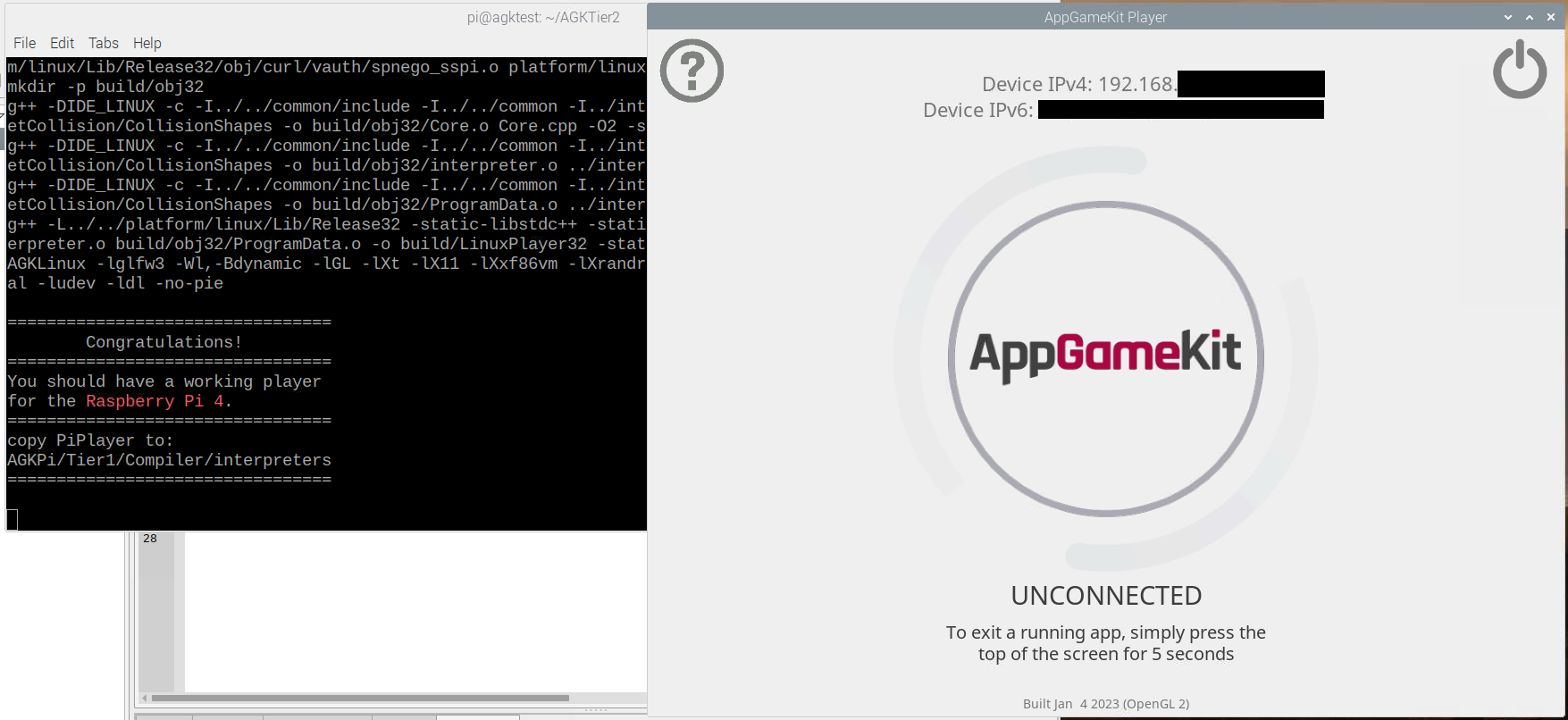
The easiest option is to run the install program which will compile all the relevant modules, create a new PiPlayer and when successful, will start the player. This process takes quite some time to compile and build, you may see some warning messages on screen during compilation, ignore these for now. Sit back, relax, have a cup of coffee…


You will be asked if you wish to apply a fix to the Shader issue with some versions of Raspberry Pi, I selected yes and let the installer do it’s thing. Once the process is complete, you should have a newly compiled PiPlayer and see something like below.
Finally: Pulling it all together
Before you return to the AGK IDE you’ll need to copy the new PiPlayer to the install location of AGK. If you’ve followed along type the following :-
cp -p ~/AGKTier2/AGKTier2/apps/interpreter_linux/build/PiPlayer ~/AGKPi/Tier1/Compiler/interpreters
Return to App Game Kit IDE and load up the SpriteAnim2 Project, Click RUN and you will be greeted with following :-
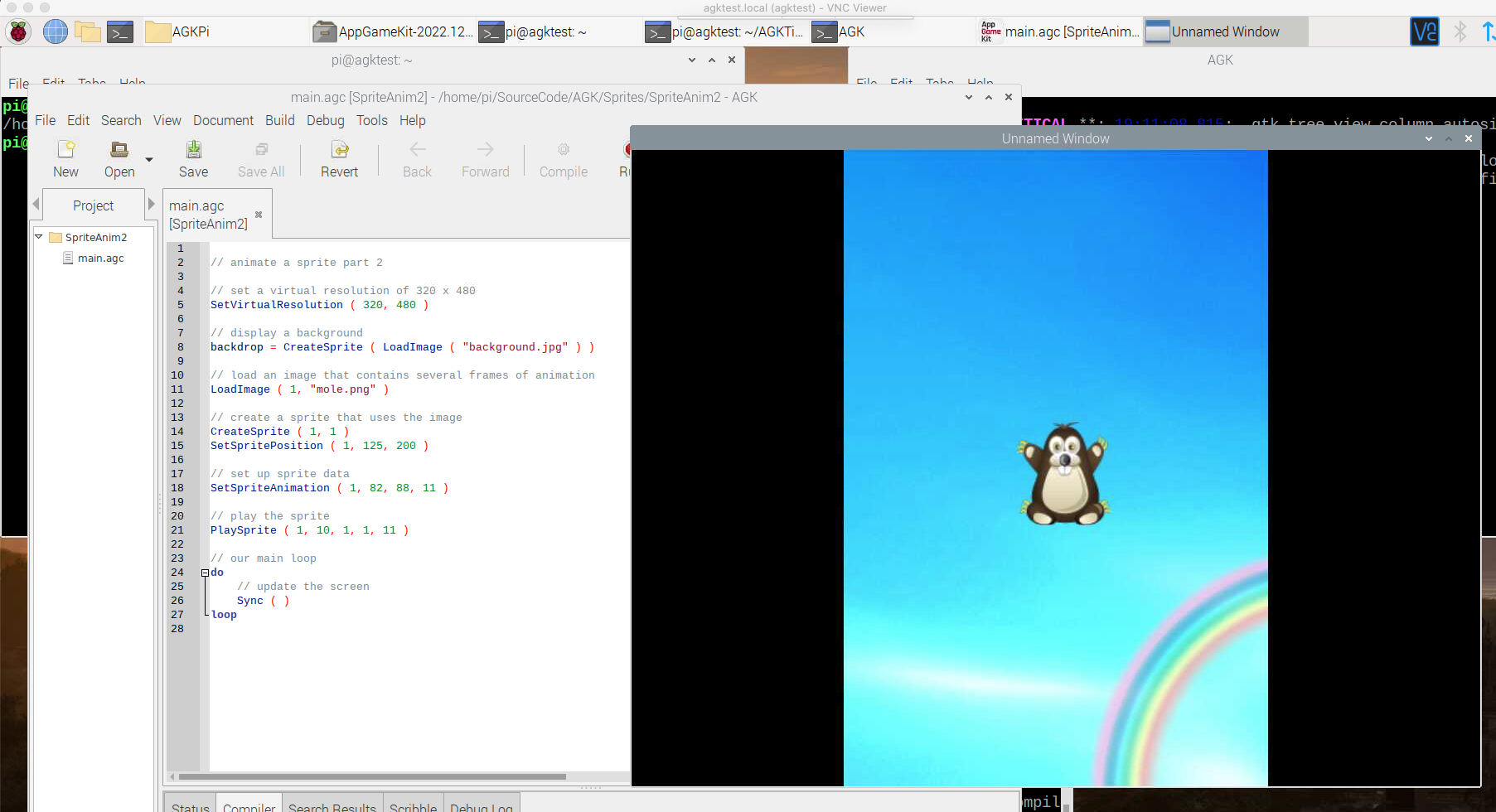
How easy was that? You can now run the various demos and create your own apps and games using this powerful development system.
Final Thoughts
In conclusion, if you have a Raspberry Pi sitting on your desk, not knowing what to do with it. Why not give App Game Kit a go. Useful for teaching younger people and adults alike the art of programming, creating games and apps similar to how we achieved this in the 80s. No need to learn complex Frameworks or APIs. The free version gives you all the examples you need to read joysticks, display text, graphics, 3D models in a simple and concise BASIC language.
Why not drop a link to your Raspberry PI AGK projects in the comments section below?
Jason
If you found this useful and wish to buy me a coffee, then please feel free using this thing below!
Choose an amount
Or enter a custom amount
Your contribution is appreciated.
Donate
 www.muckypaws.com